Asteroid Impact Introduction
Asteroid Impact is a clone of Star Reaction made for the Media Neuroscience Lab of UC Santa Barbara to allow them to run the game with randomness removed, collect additional information from the game and to reduce the chance participants deviate from the instructions by choosing the wrong level or clicking outside the game area.
License
Asteroid Impact is Copyright (c) Media Neuroscience Lab, Rene Weber
Asteroid Impact is licensed under a Creative Commons Attribution-ShareAlike 4.0 International License.
You should have received a copy of the license along with this work. If not, see http://creativecommons.org/licenses/by-sa/4.0/.
Gameplay
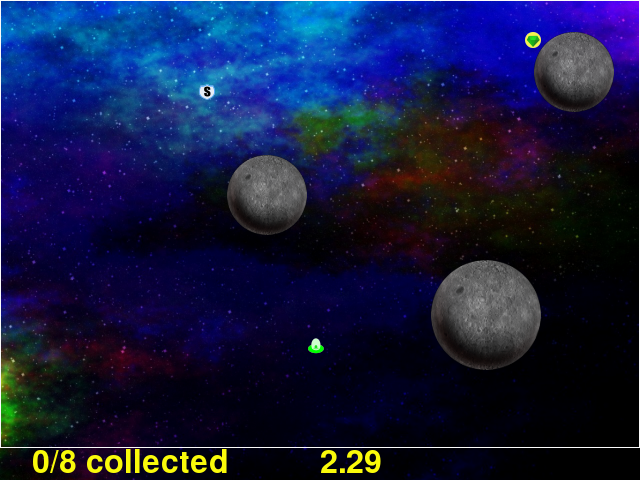
The player moves their ship around on screen with a mouse to collect crystals which appear one at a time. During this time the player avoids one or more large asteroids that move in a straight line and bounce off the edges of the screen, but not other asteroids. The player can pick up a shield to temporarily be invulnerable from hitting the asteroids, or a clock which will temproarily slow the asteroids to a crawl. Once all the crystals for the level are collected, the player proceeds to the next more difficult level. If the player is hit by an asteroid the level restarts from the beginning.
Game Logging
This game logs the player’s cursor position and the status of power-ups every and more every frame. See the Log Columns section for more details.
Custom Levels
The new levels can be created and put into a sequence for the player to complete. The new levels can have different asteriod placement, speed, number and location of crystals, number size and types of power-ups.
The sequence of levels can be built to have a slow progression or variation or repeat the same level over and over.
Game ‘Script’
To allow the researchers to combine this game with other instructions, the game can be run with a script specified which specifies a series of steps. Each step either shows the game instructions, other text instructions, gameplay, or a black screen, and each step has a specified duration in seconds. The gameplay step can specify a level list to allow the researcher to set up a sequence where easy levels are played before and after hard ones.
Input and Output Triggering
To allow synchronizing step advance with external events, like a scan starting on the FMRI, the game can be configured to advance steps after a number of received pulses over serial, parallel, or keyboard.
To allow synchronizing other recordings with game events, the operator can configure certain events to output signals over serial or parallel to be recorded by another computer.
See scriptjson
See Parallel Port Connections for information about parallel ports.
Operator Keys
There are semi-obscure keystrokes that test operators can use to make testing levels or managing the game easier. These are listed below
- Quit the game: Press alt+f4 or command+q
- Advance to the next step (from instructions to levels, or further on in your sequence). Press ctrl+n
- Lock or unlock the cursor from the window. Press alt+c or option+c
Command-Line Options
game.py can be run with the following command-line options.
The order of the command-line options does not matter.
Values (where applicable) come immediately after their command-line option. For example python game.py --music-volume 0.5.
| Option | Values | Default | Description |
|---|---|---|---|
-h, --help |
Show help message and exit | ||
--music-volume MUSIC_VOLUME |
0.0 to 1.0 | 1.0 | Music Volume, 1.0 for full |
--effects-volume EFFECTS_VOLUME |
0.0 to 1.0 | 1.0 | Sound effects volume, 1.0 for full |
--display-width DISPLAY_WIDTH |
320 to 2560 | 640 | Width of window or full screen mode. |
--display-height DISPLAY_HEIGHT |
320 to 1920 | 480 | Height of window or full screen mode. |
--window-x WINDOW_X |
0 to 2560 | None | X position of window. The window will be positioned where specified only when both X and Y are specified. |
--window-y WINDOW_Y |
0 to 1920 | None | Y position of window. The window will be positioned where specified only when both X and Y are specified. |
--display-mode {windowed,fullscreen} |
windowed or fullscreen |
windowed | Whether to run windowed or fullscreen. |
--list-modes |
[No Value] | [No Value] | List available full screen display modes and exit. |
--script-json SCRIPT_JSON |
json filename | None | script.json file listing all steps such as instructions, gameplay (with levels) and black screens. See samplescript.json for example, or documentation below. |
--levels-json LEVELS_JSON |
json filename | None | levellist.json file listing all levels to complete. Ignored when specifying –script-json. See sample below. |
--single-level-json SINGLE_LEVEL_JSON |
json filename | None | level.json file to test a single level. Can’t be combined with –levels-json or –script-json |
--subject-number SUBJECT_NUMBER |
text | [blank] | Subject number to include in log. |
--subject-run SUBJECT_RUN |
text | [blank] | Subject run number to include in the log. |
--log-filename LOG_FILENAME |
CSV filename | None | File to save log CSV file to with per-frame data. |
--survey-log-filename LOG_FILENAME |
CSV filename | None | File to save log CSV file to with per-survey-question step data. |
--reaction-log-filename LOG_FILENAME |
CSV filename | None | File to save log CSV file to with per-reaction-prompt data. |
--log-overwrite {true,false} |
true or false |
false | Whether to overwrite pre-existing log files. |
--trigger-blink {true,false} |
true or false |
false | Blink sprite on screen when a trigger pulse is received. |
--parallel-test-address ADDRESS |
hex data address of parallel port | none | Launch parallel port test screen instead of game. |
levels-json
The levels-json file, used for the --levels-json command-line option, or inside of the --script-json json file lists each level file in order. The individual level files are expected to be in the same directory as the json file listing them.
Below is a sample json file listing the standard levels.:
{
    "levels": [
        "standard01.json",
        "standard02.json",
        "standard03.json",
        "standard04.json",
        "standard05.json",
        "standard06.json",
        "standard07.json",
        "standard08.json",
        "standard09.json",
        "standard10.json",
        "standard11.json",
        "standard12.json",
        "standard13.json"
    ]
}
Dependencies
The standalone version of Asteroid Impact should not require additional software beyond Windows 7 to run.
- Asteroid Impact requires the following to run from source:
- Python 2.7 available from http://python.org
- PyGame 1.9.1 available from http://pygame.org
- Pyserial for your python version, available by running pip install pyserial or from https://pypi.python.org/pypi/pyserial
- inpout32.dll/inpoutx64.dll, and driver from Binaries Only download link on Highres.co.uk is required for parallel port support.
This has primarily been developed been using 32-bit python 2.7.10 on Windows 10 with PyGame 1.9.1 for 32 bit python.
- If you want to build a standalone executable, you will need the following:
- Python 2.7 available from http://python.org
- PyGame 1.9.1 available from http://pygame.org
- Pyserial for your python version, available by running pip install pyserial or from https://pypi.python.org/pypi/pyserial
- PyInstaller availabe from http://www.pyinstaller.org
- To generate Html documentation
- sphinx is required. See http://sphinx-doc.org/
Frequently Asked Questions
The below topics are answers to questions I expect to be common.
Quit the game
While the game is running, you can quit by pressing alt+f4 or command+q.
Unlock the cursor from the game
While the game is running, you can unlock the cursor from the game or lock it again by pressing alt+c or option+c.
Advance to the next step in the sequence of screens.
While the game is running, you can advance to the next step immedately by pressing ctrl+n.
Set the volume
Run game.py with these arguments, modified as needed: --effects-volume 1.0 --music-volume 1.0
Run full screen
Run game.py with these arguments, modified as needed: --display-mode fullscreen
Set the window size
Run game.py with these arguments, modified as needed: --display-width 800 --display-height 600
The game play area will remain centered in the window you create, with black bars added to keep the aspect ratio for the game area 4:3.
Set the window position
Run game.py with these arguments, modifed as needed --display-width 800 --display-height 600 --window-x 50 --window-y 10
X and Y values of 0 should put your window at the top left of the primary display. X and Y are in pixels.
Log details to a file
Run game.py with these arguments, modifed as needed --log-file sample.csv --log-overwrite false
Create new levels
Use makelevel.py to create new levels. For example, with the arguments below a new level will be saved to levels/mynewlevel.json with 10 crystals, 4 asteroids that are small, move at up to a medium speed, with a looping list of 10 power-up positions of all types that don’t become available until 2 seconds into the level or 3 seconds after the previous one was used.
--target-count 10 --asteroid-count 4 --asteroid-sizes small --asteroid-speeds medium --powerup-count 10 --powerup-types all --powerup-initial-delay 2.0 --powerup-delay 3.0 --file levels/mynewlevel.json
See makelevel.py for more details on the options for makelevel.py
Repeat the same level for a specified duration
When the player completes the last level in a list of levels they next play the first level in the list. To repeat the same level you can create a list of just the one level.
To limit the player to playing the repeating level for some number of seconds you must specify a script that limits the gameplay step to that number of seconds seconds.
Create a new level list JSON file named samplerepeatinglevel.json and put it in the levels folder. It should have the following contents:
{
    "levels": [
        "standard01.json",
    ]
}
Create a new script JSON file named samplerepeatinglevelscript.json and put it next to the game. It should have the following contents:
[
    {
        "action": "instructions",
        "duration": 10.0
    },
    {
        "action": "game",
        "levels": "levels/samplerepeatinglevel.json",
        "duration": 200.0
    }
]
The "duration": 200.0 specified in the above file limits the repeating level step to 200 seconds. Change this value to your desired duration.
run game.py with these arguments: --script-json samplerepeatinglevelscript.json
The script json file is described in more detail in scriptjson
Change the artwork
Edit or replace the corresponding image in the data directory. You don’t need to keep the same resolution, the graphics are scaled up or down to their screen resolution when the game is loaded. If the file name changes, make the corresponding edit to the sprite in sprites.py.
Replace the sounds
Overwrite the sound with a .wav file sampled at 22050 samples/second. A wav file with a different sample rate will play faster or slower in the game than it should.
Log CSV Columns
The Log Columns section describes the columns saved in the optional log CSV file.